“Image too small for upcoming enforcement”: how to fix Shopify product images before Google’s 500 px rule
From 31 January 2027, Google Merchant Center needs product images of at least 500 × 500 px. Here's how to find every small image in your Shopify store in about a minute, and fix them without an app.
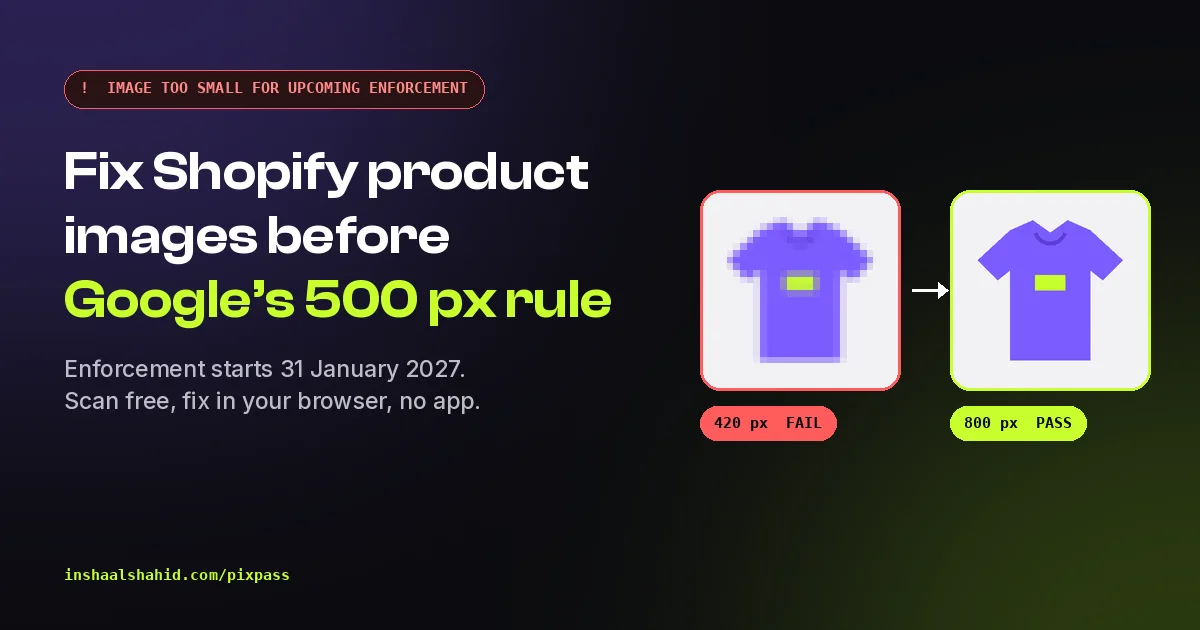
You open Google Merchant Center and see a new warning on some of your products: "Image too small for upcoming enforcement". Nothing is disapproved yet, and your ads still run. But the warning has a date behind it. From 31 January 2027, Google's minimum size for product images goes up to 500 × 500 px, and images under that may be disapproved.
This guide explains what is changing, how to find every small image in your Shopify store in about a minute, and how to fix them without an app or giving anyone access to your admin.
What exactly is Google changing?
In its 2026 product data specification update, Google says it is raising the minimum resolution for product images to 500 × 500 pixels across all product categories and marketing methods. That covers Shopping ads and free listings alike.
It applies to both the main image (image_link) and the additional images (additional_image_link). On Shopify, those come from your product and variant photos through the Google & YouTube app or your feed app.
"Won't Google fix them for me?"
Partly. Google says it will also start optimizing some images smaller than 500 × 500 so they meet the new rule, and marks those with a warning. Two things to keep in mind:
- Google says some images, not all. There's no list of which ones.
- You don't control how the optimized version looks. Your own upscaled or re-shot image is still the safer choice, and Google says you can replace an optimized image by submitting one larger than 500 × 500.
How to find the warning in Merchant Center
- Open Merchant Center and go to Products → Needs attention.
- Click View history.
- Look for "Image too small for upcoming enforcement" on the side of the page. It lists the affected products.
That tells you which products are affected, but not the size of each image, and not your additional images in a way that's easy to act on. If you have hundreds of products, a full scan is faster.
Why Shopify stores have small images
Small images are rarely a design choice. They come from:
- Old uploads. Photos added years ago, when 400 px looked fine.
- Supplier and dropshipping images imported at whatever size the supplier had.
- Swatches, logos and detail shots uploaded as product images.
- Bundles and gift sets made from cropped pieces of other photos.
Big brands aren't safe either. On 2 November 2026 I scanned 9 well-known Shopify brands in the UK, US and UAE. All 9 had images under 500 px, from 8 to 176 per store.
Step 1: Scan your store free with PixPass
PixPass is a free tool I built for exactly this. Paste your store address and it checks every product image against the 500 px rule.
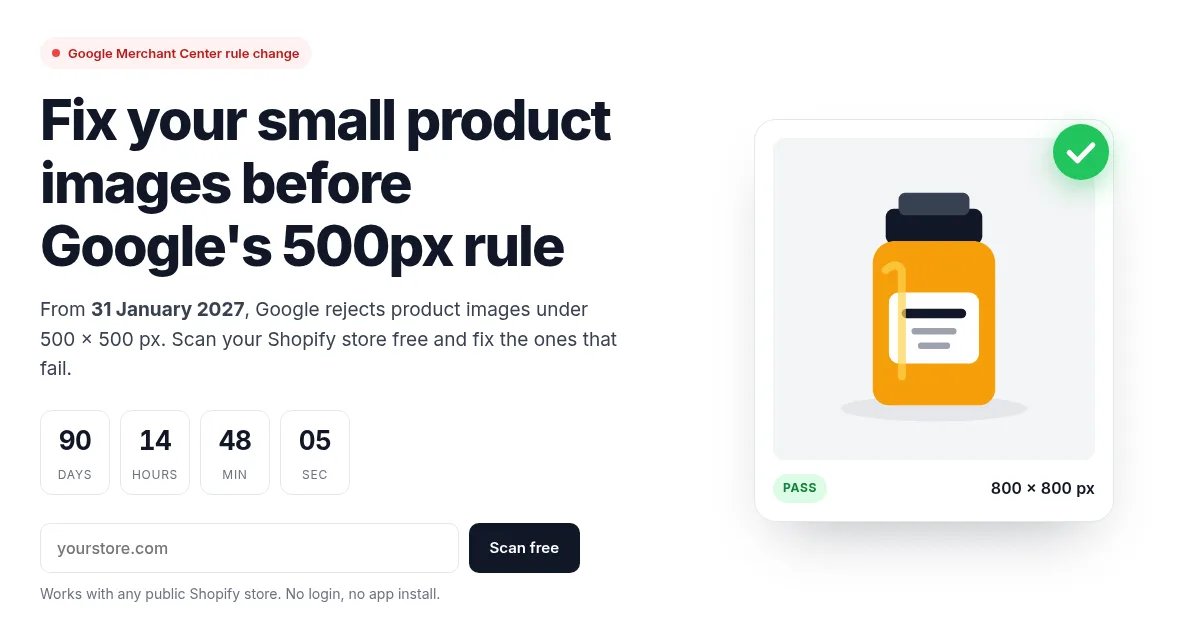
- No admin access. It reads the same public product list any visitor can see.
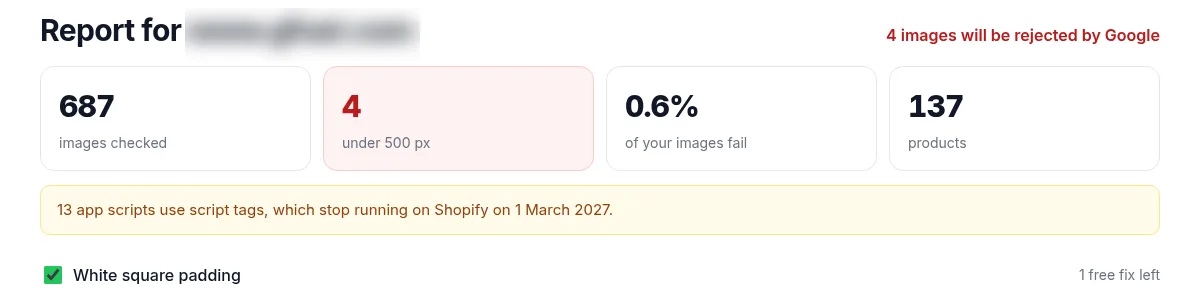
- Every image, not just the main one. Each image under 500 px on either side is listed with its product.
- Bonus check: it also flags app scripts using script tags, which Shopify stops running on 1 March 2027.
Step 2: Fix the images that fail
You have two options, and the first is always best when you can do it:
Best: upload the original
- Find the original photo or ask the supplier for a larger one
- Re-shoot hero products if the original is lost
- Real detail, best quality
- Slow when you have hundreds of images
Fast: upscale what you have
- PixPass upscales each image to at least 800 px on the short side
- High-quality resampling with light sharpening
- Optional white square padding
- Runs in your browser, images are never uploaded
Be honest with yourself about very tiny images. Upscaling makes a 450 px image clean and usable, but it can't add detail that was never in the photo. For a 40 px swatch or thumbnail, use a new photo.
Don't stretch an image to exactly 500 px either. Aim higher (PixPass uses 800 px) so you're not back on the edge if Google raises the bar again.
Step 3: Replace the images in Shopify
PixPass gives you a ZIP of fixed images and a CSV that maps each new file to its product. Then, for each product:
- In Shopify admin, open Products and the product from the CSV.
- In Media, upload the new image.
- If the old one was the main image, drag the new one into the first position.
- If the old image was assigned to a variant, assign the new one to that variant.
- Delete the old image and Save.
The Google & YouTube app sends product changes to Merchant Center on its next sync. Check Needs attention again after a few days. Agencies often hand the ZIP and CSV to a VA, which makes a few hundred images a quick job.
What it costs
The scan is free and so are your first 3 fixes. When you want the whole store fixed, you pay once, with no subscription:
Quick checklist before 31 January 2027
- Check Needs attention → View history for "Image too small for upcoming enforcement".
- Scan the store so you also catch additional and variant images.
- Replace tiny swatches and thumbnails with real photos.
- Upscale the rest to at least 800 px on the short side.
- Upload, re-assign variants, delete the old images and wait for the next sync.
- Check Merchant Center again after a few days.
FAQ
Will my products be disapproved on 31 January 2027?
Products whose images are under 500 × 500 px may be disapproved once enforcement starts. Google says it will optimize some small images itself, but not which ones, so it's safer to fix them yourself.
Does the rule apply to additional images too?
Yes. Google applies the 500 × 500 px minimum to both the main image link and the additional image link attributes.
Does PixPass need access to my Shopify admin?
No. It reads the public product list any visitor can see. Nothing is installed and you never share a password.
Are my images uploaded anywhere?
No. Images are processed inside your browser. The scan only asks your store for its public product list.
Does it work with WooCommerce or other platforms?
Not yet. PixPass works with any public Shopify store.
How many of your images fail?Scan your Shopify store free and fix the first 3 images now. It takes about a minute.